How to install Wordpress locally with MAMP in less than 5 minutes
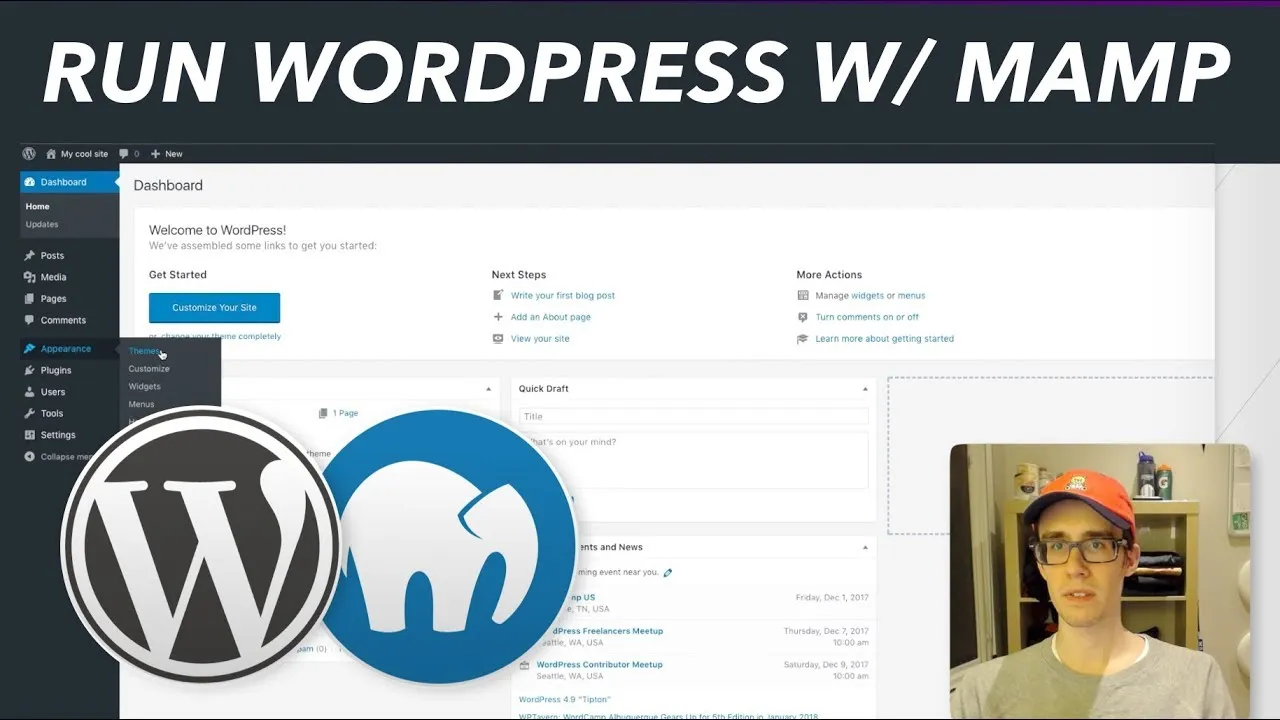
WordPress needs a web server and a database. MAMP gives you Apache and MySQL in one download, so you can run the whole thing locally with full access to the source. Here is every value and path from the video, in order.
The cheatsheet
Installing MAMP
https://www.mamp.info/en/downloads/An Apache server and a MySQL database behind one interface. Install it with all the defaults.
Downloading WordPress
https://wordpress.org/download/Download and unzip the source, but leave the folder alone until MAMP is installed.
Starting the servers
/Applications/MAMPOpen the app and hit the power button. When both indicators go green, the database and web server are running.
Creating the database
http://localhost:8888MAMP’s start page, which it pops open for you. Follow the phpMyAdmin link, go to Databases, and create one named wordpress.
root / rootMAMP’s default database username and password, listed on that same start page.
Putting WordPress where Apache can see it
/Applications/MAMP/htdocsThe folder Apache serves from. Drag your unzipped WordPress source in here.
Running the installer
http://localhost:8888/wordpress/Database name is the one you just made, username and password are both root, and the host localhost and table prefix wp_ can stay as they are.
Finding the theme source
/Applications/MAMP/htdocs/wordpress/wp-content/themesOne folder per installed theme. Copy one and rename it and it shows up in Appearance then Themes.
Going further
Copying a whole theme folder is the quick way to start, but you lose your changes the moment the original updates. The proper answer is the next video in the series, how to create a WordPress child theme. I eventually left WordPress for a static site, which is goodbye WordPress, hello static HTML.