
How to install and use fzf: the command-line fuzzy finder
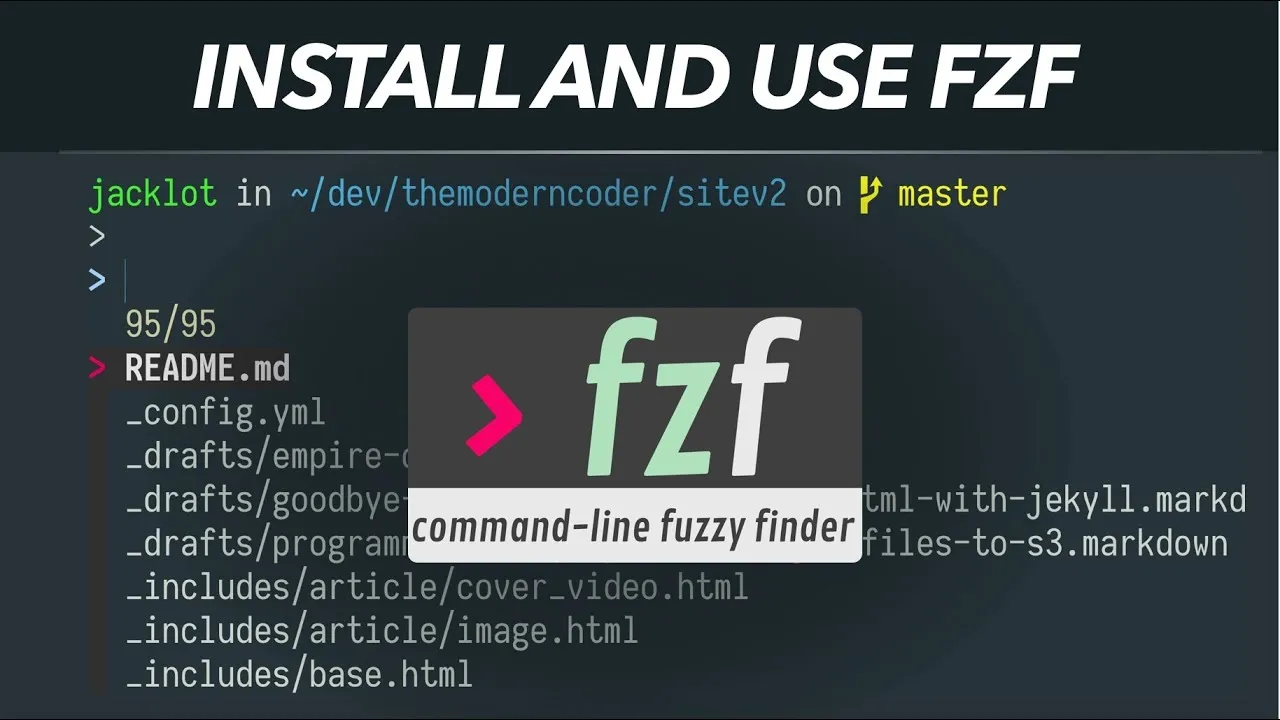
fzf is a command-line fuzzy finder. Hit a hotkey and fuzzy search your files, your command history or your SSH hosts, the way Sublime’s Ctrl-P works. Here’s the install and the bindings I use every day.
The cheatsheet
Installing fzf
git clone --depth 1 https://github.com/junegunn/fzf.git ~/.fzfDownloads the repository into ~/.fzf, where the official docs recommend putting it.
~/.fzf/installRuns the installer. Say yes to auto-completion, key bindings and updating your shell config.
Turning on extended-search mode
export FZF_DEFAULT_OPTS="--extended"
source ~/.zshrc
Add the first line to your shell config by hand, then reload. Extended-search mode is what makes the match operators below work.
Searching your command history
Ctrl-RYour shell already has a Ctrl-R, but fzf lets you cycle the list and keep narrowing it as you type.
Finding a file and pasting it onto the line
Ctrl-TFuzzy find in the current directory and paste what you pick onto the command line. Tab marks more than one file.
Matching on a suffix
.css$Typed into the fzf prompt, this matches only items ending in .css. There are more operators like it in the fzf docs.
Completing directories and hosts
cd **<TAB>** is the completion trigger. After cd it lists the directories under the current one.
ssh **<TAB>The same trigger, but context aware: after ssh it lists the hosts in your SSH config.
Changing what fzf searches
export FZF_DEFAULT_COMMAND='fd --type f'fzf shells out to find by default. fd skips anything in your .gitignore, so Ctrl-T stops offering you cache files.
Going further
The ssh completion only helps if you have hosts defined, which is SSH config basics. These settings live in your shell config, alongside the tweaks in my 4 ZSH terminal essentials.